

Follow-ups slip when your calendar fills up. Campaigns stop when your laptop sleeps. And every vendor page calls its tool “safe,” so no claim is easy to trust.
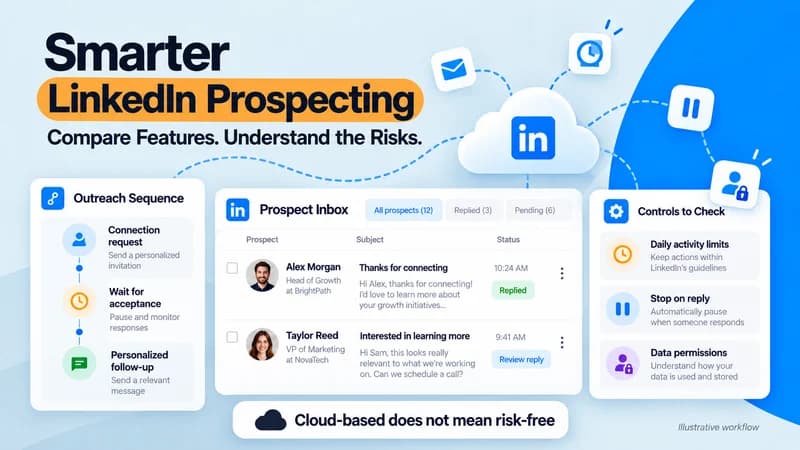
The short answer: cloud-based tools keep sequences running without your device, but none removes account risk. Compare them on targeting, sequence logic, pacing controls, reply handling, and data practices.
Below are the rules to know first, the features worth paying for, the safety settings to check, and a pilot test to run before you commit.
Start with the rules, because they shape every safe setup.
Know the Rules Before You Automate
LinkedIn’s User Agreement prohibits bots and unauthorized automated activity, so every third-party tool carries some account risk. A vendor can reduce that risk through pacing and design, but cannot remove it.
Privacy law matters too. Business contacts are still people, and these rules for business-to-business marketing explain when messaging them needs a lawful basis. Under UK data protection law, serious breaches can bring fines of up to £17.5 million or 4% of global annual turnover, whichever is higher.
LinkedIn Message Automation: What It Does and What to Automate
Managing connection requests, messages, and follow-ups takes time. With LinkedIn message automation, software handles these tasks based on rules you set. It does not pick your audience or write a strong offer for you.
Teams use it to automate LinkedIn connection messages and set up automated LinkedIn follow-ups, helping them keep conversations moving after a request is accepted.
Good candidates to automate:
- A short, truthful connection note, or no note
- A first message after acceptance
- One or two follow-ups with delays
- Stop-on-reply logic
Keep these human: replies, objection handling, and anything that needs judgment.
Cloud-Based vs. Desktop vs. Browser Extension Tools
Where the software runs affects reliability and how your activity looks to LinkedIn.
- Cloud-based LinkedIn automation tools: run on vendor servers, so campaigns continue when your device is off. Ask how the vendor handles IP addresses and sessions.
- Desktop apps: run on your computer and usually need it on.
- Browser extensions: run inside your LinkedIn session and typically need the browser open.
LinkedIn’s rules cover third-party software and extensions alike. Cloud deployment doesn’t make a tool safe. It only makes steady pacing easier to control.
Features That Matter When You Compare Tools
LinkedIn reports more than 1.3 billion members, so volume is never your constraint. Targeting is. Compare these features:
- Lead sourcing: LinkedIn search, Sales Navigator lists, CSV imports, or a built-in database
- Sequence logic: delays and if/else conditions that branch on acceptance or reply
- Personalization: variables you can verify, plus AI drafts you can edit
- Reply handling: a unified inbox, labeling, and stop-on-reply
- Multichannel flow: LinkedIn and email in one sequence, so the same prospect isn’t contacted twice
- Team controls: workspaces, permissions, and white-label options
- Integrations: CRM sync or API access, so replies reach your system of record
Skylead, for example, runs LinkedIn messages, InMails, and email in one sequence with if/else conditions. It adds a B2B database, AI enrichment, and an AI SDR for replies.
Safety Settings to Compare
LinkedIn publishes no single universal message limit, so a tool’s controls matter more than any headline number. Look for:
- Adjustable daily limits per account
- A gradual ramp-up for new or inactive profiles
- Sending windows that match the prospect’s working hours
- Randomized delays between actions
- Automatic pause when LinkedIn shows warnings or actions fail
- Stop-on-reply on every follow-up
- Clear documentation on how sessions and IPs are handled
A practical rule: the pattern to avoid is a sudden jump from no activity to full volume. Steady, gradual increases look far more like normal use.
Treat any safety guarantee as a red flag. No vendor controls LinkedIn’s decisions.
How Pricing Models Differ
Prices change, so compare structure instead of numbers. Check whether you pay per seat, per LinkedIn account, flat for a team, or by usage credits for data and AI.
Then ask what is included, such as email sending, enrichment, AI replies, extra accounts, and white-labeling. Model cost at the number of accounts you expect to run in 12 months.
Which Setup Fits Your Team
The right tool depends on who is sending.
- Solo founder or small sales team: choose simple 2 to 3 step sequences, warm segments, and strong pacing controls.
- Recruiting team: prioritize a shared inbox, permissions, and careful handling of candidate data.
- Agency: look for workspaces, per-client permissions, white-labeling, and pricing that doesn’t grow with every seat.
- Larger or regulated company: ask for written documentation on data handling before procurement review.
The Pilot Test Most Comparisons Skip
Feature lists don’t show how a tool behaves under real conditions. Before rolling out to a team, run a small pilot:
- Pick one warm, well-defined segment, such as people who engaged with a relevant post.
- Start below the vendor’s suggested limits and raise them gradually while watching acceptance and warnings.
- Reply to your own test campaign from a second account and confirm the sequence stops.
- Change one variable at a time, such as the first message or send time.
- Check export options, so your data can leave with you.
Then score each tool from 1 to 5 on stability, control clarity, support response, and data export. Here is an illustrative example, not real results. Tool A scores 5, 4, 4, and 5, for 18 out of 20. Tool B scores 4, 3, 3, and 2, for 12. Tool A wins even if both tools had similar early replies.
Data Privacy Rules for US Prospecting
US teams face state privacy laws too. If you handle personal information about California residents, California privacy law requirements may apply to how you collect, store, and delete prospect data.
Collect only what you need, honor deletion and opt-out requests, and confirm the details with legal counsel.
Where to Start
Pick one warm segment, shortlist two or three tools, and run one pilot. Confirm the safety controls work before you add volume.
If running LinkedIn and email from one sequence is your gap, Skylead’s free trial is an easy one to include. A careful pilot and honest results will serve you better than chasing the perfect tool.
FAQs
Is it allowed to automate LinkedIn messages?
LinkedIn’s User Agreement prohibits bots and unauthorized automation, so third-party tools carry account risk. Cloud tools and conservative pacing can reduce sudden activity, but they don’t give LinkedIn’s approval. Review the rules, start small, and stop immediately if LinkedIn shows a warning.
Are cloud-based tools safer than desktop tools?
Not automatically. Cloud tools keep campaigns running when your device is off and can manage pacing centrally, which helps consistency. Safety still depends on limits, sending hours, IP handling, and stop-on-reply logic. Compare those controls instead of relying on the deployment type.
How many LinkedIn messages should I send per day?
LinkedIn doesn’t publish one universal limit. Start well below what a vendor suggests, increase gradually, and watch for warnings or failed actions. A new or inactive account needs a slower ramp than an established one. Pause at the first warning and review your targeting.
Can recruiting teams use the same setup?
Yes, with extra care. Recruiters can use the same sequences, but should prioritize a shared inbox, permissions, and respectful messaging. Candidate data is personal information, so confirm how the tool stores and deletes it, and honor opt-out requests quickly.