

How to Repair Corrupt PST File for Free
Learn how to repair a corrupt PST file for free using ScanPST, Windows backups, and online PST repair tools. Follow these steps to fix Outlook errors.

Sometimes Outlook does open, but the Inbox is half empty, or it freezes the moment you click an old folder. Nine times out of ten, the problem is with PST file. PST file used by Outlook to keep your emails, contacts, attachments and calendar on your own computer. POP accounts store everything in one, and so do the archives Outlook makes of your old mail. Since it’s one big file that Outlook writes to all day, it doesn’t take much to knock it over.
Most of the time, a corrupt or broken PST file can be fixed easily without spending much of money. Some of methods are completely free that means you doesn’t need a single dollar to fix your corrupt PST file. Here, I will explain what I did, step by step, starting with the stuff that’s free.
Make a Copy of PST File
I know, you want to jump straight to the repair method but don’t do this. Every fix in this article writes to the PST file, and if any of them goes wrong, you will need the untouched original PST file to try another method.
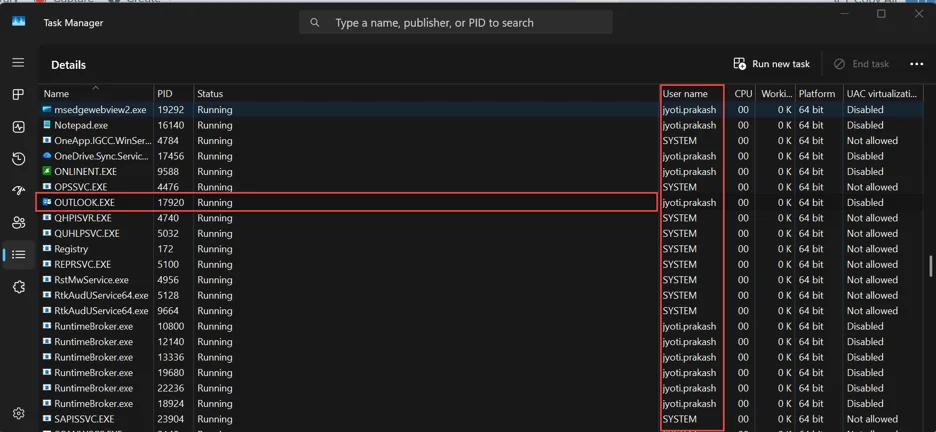
- Shutdown Outlook first. Now open Task Manager and check that OUTLOOK.EXE has really gone, because an add-in can keep it running quietly in the background.
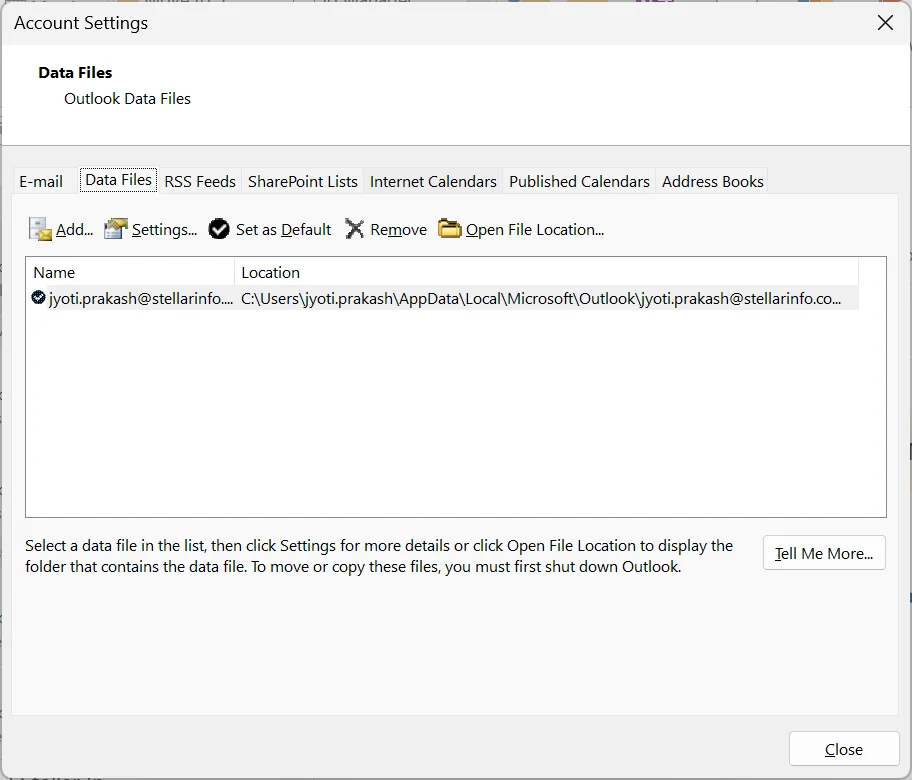
- Locate for PST File. Your PST file normally lives in Documents\Outlook Files. Not there? In Outlook, open File > Account Settings > Account Settings and click the Data Files It lists the full path for each file. Copy that file to a USB stick, an external drive or just another folder. Now you can start fixing your broken PST file.
Why PST File gets Corrupt?
Before digging into the various repair methods for repairing your corrupt PST file, if you want to know about why this happen to your PST file then read this:
There are various reasons for PST file corruption like Outlook got shutdown mid-sync, the machine’s battery died, or Windows crashed while the PST was open. Size is another big issue. Very old ANSI-format PST files stop working at 2 GB, and even modern Unicode files get sluggish and touchy once they creep past 40 or 50 GB.
You’ll know it’s the PST when Outlook says something like “xxxx.pst is not a personal folders file” or “errors have been detected in the file.” Other giveaways are folders that suddenly look empty, messages that won’t open, or Outlook stuck forever on its splash screen.
Fix 1: Microsoft’s Inbox Repair Tool
Every desktop copy of Outlook comes with a free repair utility. Microsoft calls it the Inbox Repair Tool. On your disk it’s a file named SCANPST.EXE, and annoyingly it isn’t in the Start menu, so you have to dig for it.
| Your Outlook | Folder to check |
| 2016, 2019, 2021 or Microsoft 365 | C:\Program Files\Microsoft Office\root\Office16 |
| 2013 | C:\Program Files\Microsoft Office\Office15 |
| 32-bit Office on 64-bit Windows | Same as above, but inside C:\Program Files (x86) |
Still can’t spot it? Type scanpst into the search box in File Explorer while you’re on the C: drive and wait a minute.

With Outlook closed, double-click SCANPST.EXE. Hit Browse, point it at your PST and press Start. It runs through eight phases of checks, and on a big file that can take ages, so go make a cup of tea. If it reports errors, leave the “make backup of scanned file” box ticked and click Repair. When it finishes, open Outlook again.
Here’s the part most guides leave out. Run it again. And maybe a third time. ScanPST often clears one batch of errors and then turns up more on the next pass. People on the Microsoft Community forums say this constantly, and in my experience they’re right. Stop when it tells you no errors were found.
It isn’t magic, mind you. Light damage, it handles well. A heavily damaged file, or one so broken that ScanPST can’t even open it, is a different story. And items it can’t put back where they came from don’t simply vanish. They end up somewhere else.
Fix 2: Go Looking for the “Missing” Emails
This catches a lot of people out. They repair the file, open Outlook, see gaps, and assume the emails are gone for good. Often they’re just sitting in a folder nobody looked in.
Scroll right down your folder pane. If there’s a Recovered Personal Folders entry, expand it and look for Lost and Found. That’s where ScanPST dumps anything it rescued but couldn’t place. Make yourself a new data file (New Items > More Items > Outlook Data File) and drag the stuff across, or move it straight back into your usual folders.
Also check the folder your PST lives in for a file ending in .bak. That’s the copy ScanPST saved before it started. Microsoft’s support page on repairing Outlook data files suggests copying it, renaming the copy to .pst and importing it, just in case a few more items come out. Doesn’t always help. Doesn’t cost anything either.
Fix 3: Roll Back to an Older Version
Was the PST working fine a week ago? Then Windows might still have that version tucked away, provided File History or System Protection was switched on.
Right-click the folder with your PST in it, pick Properties and go to Previous Versions. Any dated entries listed there are snapshots. Choose one from before Outlook started acting up. I’d use Copy rather than Restore, so nothing gets overwritten by accident. If you run a separate backup app or keep backups on an external drive, pull the PST from there.
Yes, anything newer than the snapshot will be missing. For most people that’s a handful of days, not their whole mailbox. On an IMAP or Microsoft 365 account those recent emails are still on the server anyway.
How to Repair Corrupt PST using 3rd Party Tool?
Sometimes you will hit a wall. ScanPST throws “An unexpected error has prevented access to this file” and quits, or it can’t read the PST file at all. Or it runs happily and your important folders are still empty afterwards. When that happens the corruption is usually beyond what Microsoft’s Inbox Repair tool was built for, and a powerful third party PST repair is the realistic next step.
My first pick here would be Stellar Online PST Repair. It opens PST files that ScanPST gives up on, copes with very large ones, and lets you see the recovered emails, attachments, contacts and calendar entries before saving a thing. It can also dig out items that had been deleted from the PST.
It is completely free, scans the file and shows you a preview of what it found. If you will be satisfy with the preview, and the file size is below 500MB then you can save it without paying anything. In-case of large size file, you need to upgrade to the premium version or desktop software of Stellar Repair for Outlook. Kernel for Outlook PST Repair and SysTools PST Repair work along the same lines, so if you want a second opinion, compare what each one previews.
FAQs
Do I have to pay for ScanPST?
No. It is completely free and comes with Outlook. The only effort is finding SCANPST.EXE in your Office folder.
Can Inbox Repair Tool throw away some emails after fixing?
It’s not supposed to, but ScanPST does sometimes throw away items it can’t fix. Hence the copy you made first, and the trip to Lost and Found afterwards.
Is there a way to repair PST file if Outlook isn’t installed?
ScanPST won’t run without Outlook. A third-party online repair tool like Stellar Online PST Repair can still repair PST file and let you preview & save what’s inside.
How long will ScanPST take time to fix broken PST?
A few minutes for a small file. Something over 20 GB might keep it busy for an hour or more.
My PST has a password. Can I still fix it?
ScanPST will scan it. You’ll just need the password to open it in Outlook afterwards.