
How To Convert Scanned PDFs Into Editable Files
Scanned documents come with their own set of challenges when it comes to managing them. Many times, scanned PDF files are secured as images, so users...

Scanned documents come with their own set of challenges when it comes to managing them. Many times, scanned PDF files are secured as images, so users cannot change the text. Static files can now be converted into editable documents, which allows for faster, simpler document maintenance. This eliminates the need to open a whole new file, make the changes, and then re-upload the initial draft. If you want to know how to turn a scanned PDF into editable text, this is a step-by-step guide that anyone can follow.
Understanding Scanned PDFs
Scanned PDFs are the digital representation of paper documents. Such files generally store every page as a raster picture, preserving visual details, but losing real text characters. This means that if you have a PDF that has been scanned, you are unable to select, copy, or even edit any text that may be available within these pages. In contrast, editable formats can recognize characters, making it easy to modify them.
Why Convert Scanned PDFs?
Scanning a PDF to Word helps users to reupdate key records, fill in the form, or extract the data without writing traditionally. The PDF standalone format cannot be undone; however, conversion into a different format is possible. When you make PDF editable, you save time and make collaboration easy. Revisions, notes, and layout changes are all easy by design, and team members can do all this within the same environment. This change also helps in rectifying mistakes or editing the contact information in articles.
Essential Tools for Conversion
There are stand-alone software or web-based applications that have the capability to convert scanned PDF files to an editable format. Most of these tools use Optical Character Recognition (OCR). Each scanned image contains visual information, and OCR takes an image, detects the text, and translates it into recognized characters. Some solutions are operated on the web itself, while others require installation on a computer.
Optical Character Recognition Explained
When you upload an image-based PDF, Optical Character Recognition technology looks at each shape and sees if it matches a letter or number, and then converts it. After the system identifies the text, it re-creates the file in an easy-to-edit format. The accuracy is determined by the quality of the original scan, how clear the handwriting and/or print are, and the language of the document as well.
Steps To Convert Scanned PDFs
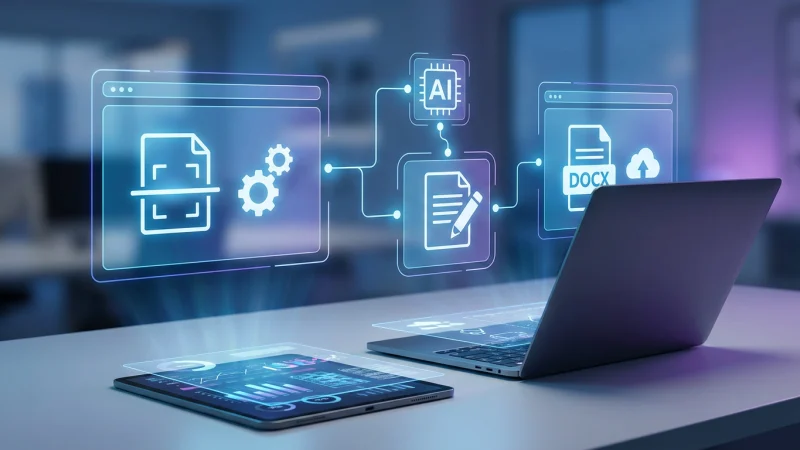
Choose a reliable OCR-supported converter. Load the scanned PDF onto the platform. Some services ask the users to specify the language or specific regions of documents for obtaining higher accuracy results. Then, you start the conversion and wait for the software to analyze the file. You can then download the output file in Word or plain text format after it is finished.
Tips for Achieving Accurate Results
The conversion of scanned PDFs varies in quality. High-quality, clear scans improve the text recognition process. Do not submit a scan image that is skewed, where ink has faded, or the page is blurry, as this will reduce the accuracy of OCR. Even the most advanced tools may misread unfamiliar fonts or handwritten notations, so verify the converted document for mistakes.
Popular File Formats for Editing
Image types are different when it comes to the editable files. Even though it is always a great idea to stick with a Google Doc because of its shareability, Word is still more compatible for formatting. Plain text files are the simplest format and are easily readable with any text editor. Some users prefer spreadsheet formats for documents that have a lot of tables.
Security and Privacy Considerations
If your business regularly handles sensitive documents, you need to be cautious about privacy. Examine the data protection policies of the provider before uploading files to the online service. Certain tools manipulate files present on the PC itself; therefore, it is important to ensure data privacy. Permanently delete temporary files and do not send editable versions to unauthorized persons.
Common Issues and Troubleshooting
Conversion tools generally work well, but for low-quality scans or the odd layout, they can stumble. In those situations, upgrade the original file with a scanner adjustment or picture-modifying application. Edit for readability, such as adjusting brightness, contrast, or orientation. Convert the clean scan again and check the output for remaining errors.
Conclusion
To convert scanned PDFs into editable documents is a key skill that provides a good level of efficiency. While it might seem challenging, anyone can transform digital files into editable versions using the right tools and proper preparation. The process enables users to confidently and easily update, share, and organize documents.