
How to Record Your Screen Like a Pro: Tools and Tips for Every User
Create clear, professional screen recordings with this guide. Explore free and paid tools, essential preparation tips, effective recording techniques, and basic editing for polished results.

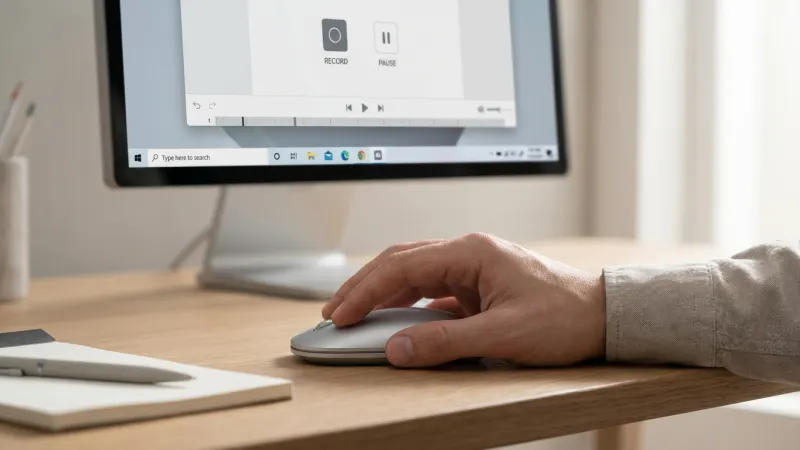
Screen recording has become a fundamental tool for professionals, educators, and content creators. Whether creating tutorials, documenting workflows, demonstrating products, or sharing information with a team, recording your screen allows viewers to follow processes in real time, reducing misunderstandings and saving time compared to text-based instructions or static screenshots.
Although recording might seem straightforward, producing clear and effective videos requires preparation, thoughtful workflow, and selecting tools suited to the type of content being captured. Planning ahead ensures recordings are smooth, concise, and easy to follow.
Preparing for a Screen Recording
Preparation is key to creating recordings that are useful and easy to understand.
- Start by defining the purpose and structure of your video. Are you demonstrating a software workflow, explaining a process, or creating a step-by-step tutorial? Knowing your objective helps determine the length, level of detail, and approach.
- Next, organize your workspace. Close unrelated applications, mute notifications, and tidy your desktop. A clean environment reduces distractions for both you and your viewers.
- If your recording includes sensitive information, such as personal data or confidential documents, double-check what is visible on screen before starting. Accidentally exposing private details is a common and preventable mistake.
- Audio quality is equally important. Check microphone levels and record a short test clip to identify issues such as low volume, background noise, or echo. Even minor adjustments at this stage can significantly improve clarity.
- Finally, consider breaking longer recordings into smaller segments. Short, focused clips are easier to follow, edit, and share, making the content more accessible to viewers.
Screen Recording Tools: Free and Paid
There are numerous tools for screen recording, and the choice depends on the platform, goals, and workflow. Some tools are exclusive to Windows or macOS, while others work on both systems. The choice of the best screen recorder for Mac or Windows will depend on whether you need a quick capture, a longer tutorial, or a repeatable recording setup.
Free tools:
- OBS Studio (Windows and macOS) — flexible for simple and complex recordings
- Xbox Game Bar (Windows) — built into Windows, convenient for quick captures
- ShareX (Windows) — lightweight, practical for short clips
- QuickTime Player (macOS) — built-in solution for basic captures
- Kap (macOS) — minimal open-source tool
Paid tools:
- Camtasia (Windows and macOS) — recording with integrated basic editing
- Bandicam (Windows and macOS) — stable performance for longer sessions
- Snagit (Windows and macOS) — convenient for short instructional videos
- ScreenFlow (macOS) — suitable for structured tutorials or longer recordings
- Movavi Screen Recorder (Windows and macOS) — screen and audio capture, light editing
When choosing a tool, consider not only recording features but also export options, performance impact, and ease of use. Some applications offer advanced capabilities such as scheduled recordings, webcam overlays, or automatic cursor highlighting, which can be valuable for presentations and training materials.
Recording Techniques for Clear Videos
Once you’ve chosen a tool, technique plays a crucial role in creating recordings that are easy to follow:
- Pacing: Move steadily through tasks and avoid jumping between windows too quickly. A calm and deliberate pace helps viewers absorb the content.
- Cursor and visual guidance: Smooth cursor movements and optional visual cues, like highlights or annotations, make it easier for viewers to follow actions.
- Handling mistakes: Minor errors can be managed by pausing briefly and continuing the recording rather than stopping. This simplifies editing later.
- Audio management: Balance system audio and microphone input, and minimize background noise to improve clarity.
If you are explaining complex actions, consider briefly narrating what you are about to do before performing it. This gives viewers context and prevents confusion, especially when multiple steps occur quickly on screen.
Basic Editing for Polished Results
Even minimal editing can significantly enhance clarity and viewer comprehension. Consider:
- Trimming unnecessary sections at the beginning and end
- Removing long pauses or minor mistakes
- Adjusting audio levels for consistent sound
- Adding labels, arrows, or highlights to emphasize key points
Many screen recording tools include lightweight editing features, which allow you to make these adjustments without switching between multiple programs. Choosing the right export format and resolution ensures smooth playback and manageable file sizes.
Common Pitfalls
Being aware of common mistakes can help produce more effective recordings:
- Skipping test recordings: A short test ensures audio, video, and capture areas are correct.
- Overloading a single recording: Covering too much in one video can make it harder to follow. Short, focused recordings are easier to digest.
- Cluttered desktops or noisy environments: Even small distractions can reduce clarity.
- Erratic cursor movement: Smooth and deliberate actions improve comprehension, while fast or inconsistent movements can confuse viewers.
Conclusion
Screen recording is a versatile communication tool that extends beyond simple technical execution. Thoughtful preparation, consistent technique, and selecting tools that fit your workflow are key to producing recordings that are clear, practical, and professional in appearance.
Whether your goal is documenting workflows, demonstrating a product, or creating internal tutorials, focusing on clarity and structure matters more than the specific software used.