

5 Top Remote Desktop Software Platforms With Multi-Monitor Support
Compare the 5 top remote desktop software platforms with multi-monitor support to improve productivity, collaboration, and seamless access.

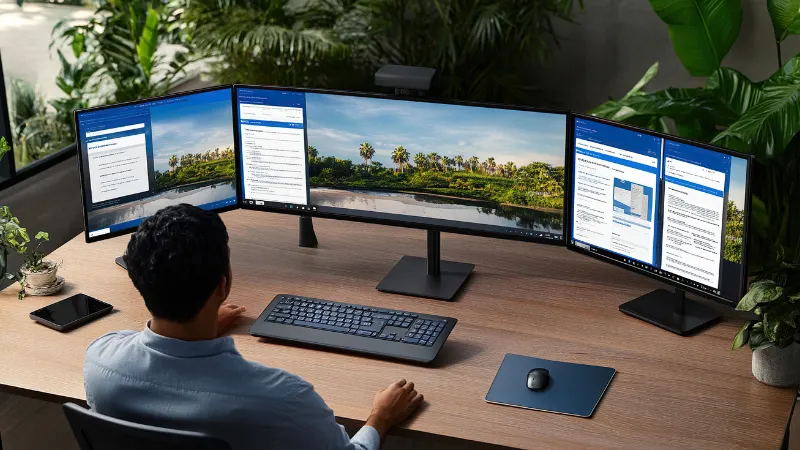
If you have worked across (the perimeter of) two or three screens, you know how much friction one monitor reacclimatizes to once you go remote. For a lot of professionals, apart from luxury with multiple displays, the ability to spread spreadsheets, reference material, and primary workspace across multiple displays is how they work. For a multi-monitor setup that needs to be replicated remotely, the way in which your remote desktop platform supports is less of an ancillary design consideration and more one of the key make-or-break elements for whether working remotely feels like a cohesive experience – or one that is ever plagued by having busted-up functionality.
Here is the list of multi-monitor remote session-friendly platforms and a simple explanation about what each platform supports up to date, as of October 2023.
Splashtop
Splashtop implements all its multi-monitor support by trying to replicate the local experience as much as possible. When a user connects to a remote computer that has several displays attached, they can see and switch between these displays from the local device (regardless of whether that local device itself has 1 or many screens). You can either view multiple remote monitors side-by-side or toggle between monitors, depending on your working style.
For remote desktop software with multi-monitor needs specifically, the quality of that experience matters as much as the existence of the feature. Splashtop’s high-performance streaming, including support for 4K resolution and high frame rates, means that multi-monitor sessions remain responsive rather than degrading into lag when more screen real estate is being pushed over the connection. This is particularly relevant for design, video editing, or data-heavy work where multiple monitors are common and visual fidelity actually matters during the remote session.
RealVNC Connect
RealVNC Connect supports multi-monitor sessions as part of its broaderVNC protocol with cross-platform reach, giving users the ability to view and switch between all displays on a remote machine across Windows, macOS, Linux and even Raspberry Pi environments. This cross-platform depth matters for organizations with a heterogeneous device mix where multi-monitor needs extend beyond standard Windows or Mac desktops.
The multi-monitor experience is solid for general productivity and remote administration tasks, though users running graphics-intensive workloads across multiple displays may find some of the more performance-tuned alternatives on this list better suited to high-resolution, high-frame-rate demands.
RemotePC
In addition to this standard practice, RemotePC also includes multi-monitor support on all their business plans which allows users to view & switch across the multiple displays of the remote machine. Generally, this implementation is complete and stable for everyday office productivity tasks needed by most remote workers looking to have spreadsheets, documents, and browser windows across multiple screens.
The platform’s multi-monitor support is not as detailed as that of some performance-stripped alternatives in the category, especially for graphics-heavy work. In fact, RemotePC’s handling of multi-monitor sessions is more than enough for basic business use cases involving its office apps and standard productivity software. The experience may not be as optimized for users running professional creative or technical workloads across multiple displays as platforms that have been designed with more specific use-case provisioning in mind.
ConnectWise ScreenConnect
The ability to see the multi-display configuration during technician sessions full multi-monitor view vs partial or single monitor is important, so ScreenConnect supports this feature as well, especially for IT support technicians who are remote accessing a user’s computer and need to assist with an issue. During a session, technicians usually can see all of a remote user’s monitors and switch between them as required to troubleshoot.
This is less about mimicking a comfy personal workflow and more about adding completeness to diagnostics when it comes specifically to support and helpdesk contexts. If a user has three monitors, and a technician can only see one of them, the actual place where the problematic event is occurring be it on another monitor or in the background might be inaccessible to them as well. This use case for ScreenConnect is a general indicator of its overall drive to IP-based IT support workflows instead of personal productivity reassembly.
Empirical research into the productivity effects of expanded screen real estate has consistently found measurable benefits for complex, multi-application work, and that research extends directly to how multi-monitor productivity research has shaped expectations for remote access tools. Users accustomed to multi-monitor setups in person generally expect remote sessions to replicate that experience rather than forcing them back into a single-screen workflow, which is precisely why this feature has become a baseline expectation rather than a premium add-on across most modern platforms.
TsPlus
TsPlus parleys remote Windows application and desktop access whilst supportingmulti-monitor configurations for published Windows apps, where users can span their view across multiple displays when accessing a remote session. The multi-monitor experience is acceptable here as long as you understand that this platform does not replicate full general-purpose remote desktops but rather focuses on publishing just the specialized Windows apps TsPlus targets.
TsPlus’s multi-monitor handling can cater well to users whose biggest requirement is remote access to one or two particular legacy Windows applications. For users who require a complete remote desktop replication experience where multiple displays act identically to how they do locally across disparate applications, the remaining platforms in this document, especially those that are built around general-purpose remote access will generally provide a more complete experience.
Frequently Asked Questions
Why does multi-monitor support vary so much in quality between remote desktop platforms?
Well, that difference boils down to how the software handles the increased bandwidth and rendering requirements of running multiple high-resolution displays at once and whether the interface allows users to switch between screens easily. Multi-monitor support is an experience that platforms built primarily around general business and consumer remote access will usually pay a lot of attention towards when compared to narrow use cases like specific application publishing; these latter types having multi-monitor available as an option but it being more of a secondary concern for the platform since its mostly not enabled by default in anything except the barest minimum fashion.
Does multi-monitor remote access require more bandwidth than a single-monitor connection?
Yes, generally. The abundant amount of visual data streamed simultaneously in real time with multiple displays, especially at higher resolutions, means that a stable and always sufficiently fast internet connection counts even more for multi-monitor sessions than for single-monitor sessions. For some users, particularly under suboptimal network conditions in multi-monitor remote sessions, they may question whether the problem lies with their network rather than with the software.
Can I use multi-monitor remote access if my local device only has one screen?
Yes, the majority of multi-monitor remote access tools offer the option for a single-screen local device to see and switch between the displays of a distant machine with either switching or side-by-side view options enabled on viewing away from home over a logged-in. It won’t be the same as having physical access to lots of local screens but you can still have the ability to get to each remote display and interact with it if your own local setup isn’t that comprehensive.