
The First-Render Gap: Why Great AI Images Aren’t Always Campaign-Ready
Discover why AI-generated images often need refinement before launch and how to make them campaign-ready with better quality.

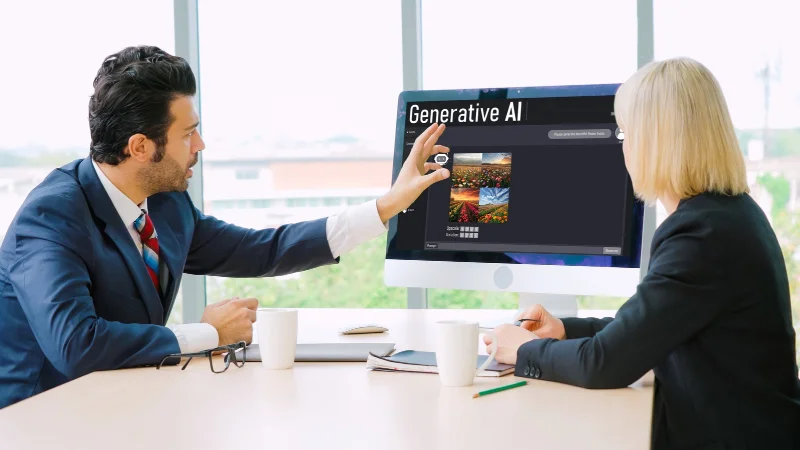
A generated image can win approval in a meeting and become a problem an hour later. The lighting and overall mood look right. Then the social team asks for a vertical version. The website needs space for a headline. Someone notices a distracting object behind the product, while the designer wants to reuse the main subject on a different background.
That first render may be good enough for approval but still need work before publication. For marketers working across several channels, the more useful question is whether an image can survive the changes that follow.
Start with the placements, not the prompt
Consider a B2B software company preparing a product announcement. It needs a website hero, a LinkedIn post, a newsletter header, and possibly a short promotional video. All four might use the same visual, but require different layouts.
A dramatic square composition may be ideal for social media. Crop it into a wide banner, though, and the product disappears into the corner. Add a headline and it covers the face or focal object. The team ends up generating replacements that look similar but never quite match.
Planning reduces the rework. Before generating, decide where the copy will sit, which part of the image must remain recognizable, and how much background can safely be cropped. Try prompting: “Keep the product on the right, with uncluttered space on the left for a headline.” This connects generations to the campaign brief.
Keep the good parts when something needs fixing
Starting over is tempting when an image has one obvious flaw. Unfortunately, a completely new render may lose the expression, colors, or composition that made the first version worth keeping.
Image-to-image editing uses the existing picture as a reference. Instead of requesting another generic office scene, a marketer can ask to change the lighting, simplify the background, or adjust a prop while keeping the main subject. Review the result: generative edits can change unintended details. But a targeted revision is easier to evaluate than an unrelated replacement.
The Pixlio AI image editor supports this kind of prompt-led editing alongside text-to-image creation. Users can generate a starting visual, select the result, and bring it back for further changes. Pixlio is also an AI image creative studio with dedicated tools for practical follow-up tasks. This helps when a general editing prompt feels like the wrong tool.
Handle small production problems with specific tools
Say the team has settled on a photograph for a webinar campaign. The speaker looks natural, but a bag on the table pulls attention away from the face. An image object remover lets the designer mark that area for removal while keeping the rest of the scene as the working image.
The placement problem is different. A tight portrait that works in a social post may leave no room for a newsletter headline. AI outpainting can extend the image beyond its existing edges, adding background around the original composition. The extra canvas provides more layout options, although the generated surroundings should be checked for strange textures or inconsistent lighting.
A background remover solves another common handoff issue. If the team wants the same product or person over several branded designs, separating the subject from its original background gives the designer more flexibility. Edges around hair, glass, or transparent objects can still need a closer look before publication.
These unremarkable edits can absorb hours between concept approval and publication.
Make revisions easier for the next person
Creative work rarely stays with the person who made the first image. A marketer develops the concept, a designer adapts it, and a video editor needs a starting frame. The quality of that handoff influences how much work everyone repeats.
Keep the approved original available, along with the prompt and any useful generation settings. Save revised files under names that describe their purpose, such as *web-hero-wide* or *linkedin-portrait*, rather than a series of vague “final” versions. When requesting changes, identify what must remain untouched. “Move the product slightly right; preserve the logo, label, and lighting” gives a clearer target than “make it better.”
For image-to-video work, review the chosen still at the size and crop the video will use. A background that looks harmless in a static graphic can be distracting once movement is added. A careful first frame helps, though it cannot guarantee smooth motion or solve limitations in the video model itself.
Judge the asset after it leaves the generator
The real test of an AI image comes when it reaches the people who must publish it. Does it leave room for copy? Can it be adapted without changing the campaign’s visual identity? Will the subject still read clearly on a phone? Are there details that could misrepresent the product?
Ask those questions early. Generate with the destination in mind, preserve useful work through focused edits, and check the image in its final context. The best creative asset is often the one that needs fewer explanations and fewer emergency fixes when the campaign goes live.