

Webflow Technical SEO Checklist for B2B Websites
Webflow handles hosting, SSL and sitemaps, but B2B sites still need the right settings. Use this technical SEO checklist for CMS, indexing and speed.

Webflow has a reputation for being good for SEO, and for the most part it deserves it. Hosting, SSL, clean code and an XML sitemap all come built in. That is exactly why many B2B marketing teams assume technical SEO is handled the day the site goes live.
The trouble starts later. A B2B site grows in ways a brochure site does not: a blog and a case study library in the CMS, gated reports with thank-you pages, campaign landing pages, and a stack of scripts from HubSpot, chat tools and tag managers. Each of these brings settings that Webflow leaves for you to decide. This checklist covers the ones that matter most, and where to find them.
What Webflow Handles for You, and What It Doesn’t
It helps to separate the automatic from the manual before auditing anything.
Webflow takes care of the infrastructure. It serves pages over HTTPS, generates and updates the XML sitemap, produces semantic HTML from the Designer, and lets you set custom 301 redirects without touching a server. You do not need plugins for any of this.
What it does not do is make editorial decisions. It will not decide which pages should stay out of search results, write meta descriptions for new CMS items, choose a canonical domain or stop a marketer from embedding a heavy script on every page. Those choices sit with your team, and on B2B sites they tend to drift as more people publish.
What Webflow Handles for You, and What It Doesn’t
It helps to separate the automatic from the manual before auditing anything.
Webflow takes care of the infrastructure. It serves pages over HTTPS, generates and updates the XML sitemap, produces semantic HTML from the Designer, and lets you set custom 301 redirects without touching a server. You do not need plugins for any of this.
What it does not do is make editorial decisions. It will not decide which pages should stay out of search results, write meta descriptions for new CMS items, choose a canonical domain or stop a marketer from embedding a heavy script on every page. Those choices sit with your team, and on B2B sites they tend to drift as more people publish.
Indexing and Crawl Settings
Start with what search engines can see. Most technical problems on Webflow sites come from pages that should not be indexed, or the same content appearing under more than one URL.
The first check is the staging domain. Every Webflow project has a webflow.io subdomain. In Site settings, under the SEO tab, you can disable indexing of that subdomain so staging copies of your pages never compete with the live site. It takes one toggle and is easy to forget.
Next, set the global canonical URL in the same SEO settings. This tells search engines which version of your domain is the primary one. Google’s documentation on consolidating duplicate URLs explains why this matters: when several URLs show the same content, Google picks one to show, and a clear canonical signal helps it pick yours.
Then review the pages that exist for process rather than search. Thank-you pages after a form fill, gated asset downloads, internal style guides and password-protected client areas should carry a noindex tag. In Webflow, you can turn off a static page’s sitemap inclusion in its page settings and add a robots meta tag to the page’s custom code.
For CMS collections, sitemap inclusion is set per collection template, so decide whether each collection belongs there at all. A collection of thin author profiles may be better excluded entirely. To keep individual items out, such as event pages from three years ago, a common approach is a CMS switch field that adds a noindex tag through the template’s custom code.
Finally, look at robots.txt, which Webflow lets you edit in the SEO settings. Keep it simple. Use it to block crawl traps such as filtered or paginated URL parameters, and never use it as a substitute for noindex on pages you want removed from results.
CMS Templates and Structured Data
On most B2B Webflow sites, the CMS holds the majority of indexable pages: blog posts, case studies, resources, integrations and job listings. Each collection uses one template, so a single setting on that template affects every item in it.
Open each collection template’s page settings and bind the SEO title, meta description and Open Graph image to collection fields. If those fields are blank, every new item ships with a generic title or the same description as the template. Add a dedicated SEO description field to each collection so writers fill it in, rather than letting it pull the first lines of the body copy.
Do the same for images. A plain-text alt text field in the collection, bound to the main image, means alt text gets written as part of publishing rather than in a cleanup project months later.
Structured data needs the same template thinking. Webflow does not generate schema automatically, but you can add JSON-LD in a collection template’s custom code and insert CMS fields into it, so every article or case study gets its own valid markup. On a site with a few collections, a marketer can check each template by hand. Still, on larger libraries, a Veza Digital Webflow SEO agency engagement, for example, would usually start by mapping which fields each template binds and which pages it should never index. Whoever does it, validate the output with Google’s Rich Results Test after publishing.
One more CMS habit saves a lot of traffic: when someone changes an item’s slug, add a 301 redirect from the old URL in the publishing settings straight away. Webflow will not do it for you, and old case study URLs often hold the backlinks a B2B site worked hardest to earn.
The Checklist
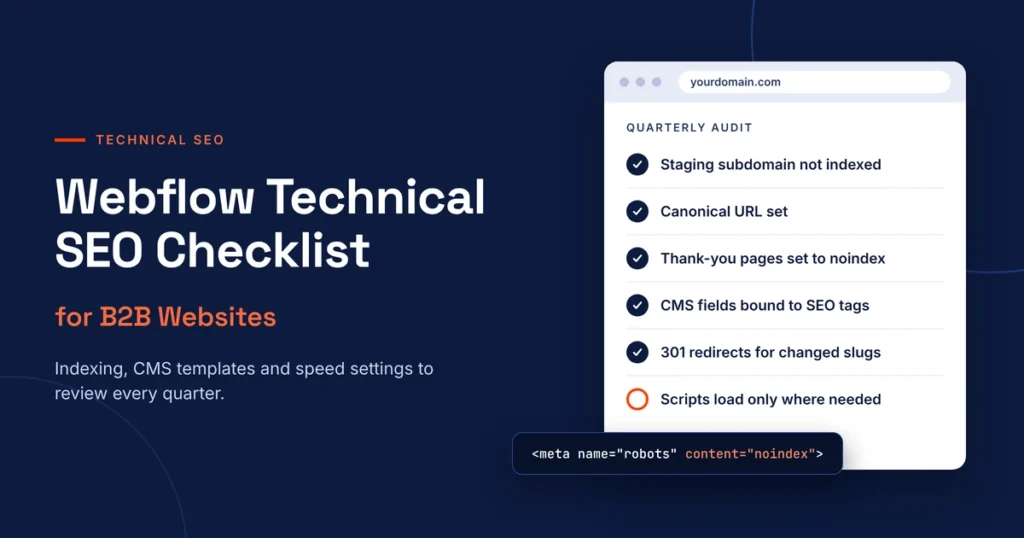
Run through these items once a quarter, or before any major campaign launch:
- Indexing is disabled for the webflow.io staging subdomain.
- A global canonical URL is set, and the root and www versions redirect to one default.
- Thank-you, gated and utility pages are excluded from the sitemap and carry noindex.
- Each CMS collection is reviewed for whether it, or individual items in it, should stay out of the sitemap.
- robots.txt blocks crawl traps but does not hide pages you want deindexed.
- Every collection template binds the SEO title, meta description and Open Graph image to CMS fields.
- Every collection with images has an alt text field bound to the main image.
- JSON-LD schema on templates validates without errors in the Rich Results Test.
- Changed slugs and deleted pages have 301 redirects to the closest relevant page.
- Search Console shows no unexpected spikes in excluded, duplicate or 404 pages.
- Third-party scripts load only on the pages that need them.
- Core templates, including the homepage, a blog post and a key landing page, pass Core Web Vitals on mobile.
Speed on B2B Webflow Sites
Webflow’s hosting is fast, so slow B2B sites are rarely a server problem. They are usually a script problem.
Embedded HubSpot or Marketo forms, chat widgets, cookie banners, scheduling tools and tag manager containers all add JavaScript, and they are often placed in the site-wide head code because it is the quickest option. Move them to the page-level custom code of the pages that actually use them. A demo booking widget does not need to load on every blog post.
Interactions and Lottie animations can also add weight, especially on the homepage, where design teams tend to stack them. Check each one against what it adds for the visitor. For images, upload them at the size they display, use Webflow’s responsive image settings and convert large files to WebP or AVIF where your setup allows. Limit custom fonts to the weights you actually use.
Test the homepage, one blog post and one landing page in PageSpeed Insights after each change. Those three templates usually represent most of the site.
Webflow gives B2B teams a strong technical starting point, but it cannot make editorial decisions about indexing, metadata or scripts on your behalf. Set the defaults once, build SEO fields into every CMS template, and run the checklist each quarter. The work is small when it is routine, and much larger when it waits until traffic drops.